 reGOTCHA
How to Identify CAPTCHA Parameters Using CapSolver Extension
Learn to quickly detect and extract CAPTCHA parameters (site key, action, cData) using the CapSolver browser extension for reCAPTCHA and Cloudflare Turnstile.
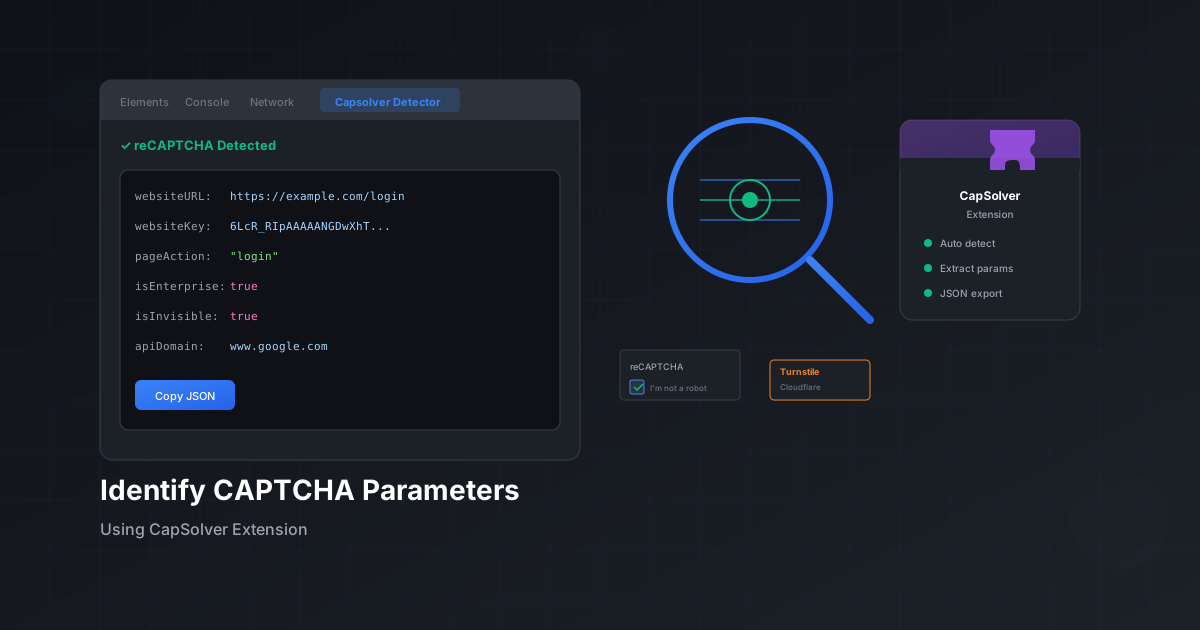
What is the CapSolver Extension?
Before you can solve any CAPTCHA using a service like reGOTCHA, you need to know the specific parameters required by that CAPTCHA. The CapSolver browser extension is a free utility that automatically detects and displays these parameters, saving you hours of manual inspection.
This guide shows you how to use the extension to identify parameters for reCAPTCHA v2, v3, reCAPTCHA Enterprise, and Cloudflare Turnstile.
Step 1: Install the Extension
The CapSolver extension is available for both Chrome and Firefox:
- Chrome: Install Captcha Solver Auto Solve from the Chrome Web Store
- Firefox: Install from Mozilla Add-ons (search for "CapSolver")
After installation, you'll see the CapSolver icon in your browser toolbar.
Step 2: Access the Detection Panel
The detection tool is available in your browser's Developer Tools:
- Navigate to any website with a CAPTCHA
- Press
F12(or right-click → Inspect) to open Developer Tools - Look for the "Capsolver Captcha Detector" tab in the DevTools panel
- Click on the tab to open the detection interface
Step 3: Trigger the CAPTCHA
With the detection panel open, perform actions on the website that would trigger the CAPTCHA:
- Click a submit button
- Fill out a form
- Navigate to protected pages
- Trigger login or checkout flows
The extension automatically detects CAPTCHA initialization and displays the extracted parameters.
Detected Parameters for reCAPTCHA
For reCAPTCHA (v2, v3, and Enterprise), the extension identifies these key parameters:
| Parameter | Description | Example |
|---|---|---|
websiteURL | The URL of the page with CAPTCHA | https://example.com/login |
websiteKey | The site key (public key) | 6LcR_RIpAAAAANGD... |
pageAction | The action name (v3/Enterprise) | login, submit |
isInvisible | Whether CAPTCHA is invisible | true / false |
isEnterprise | Whether it's Enterprise version | true / false |
apiDomain | reCAPTCHA API domain | www.google.com |
Using Detected Parameters with reGOTCHA
Once you have the parameters, you can use them to create a solve request:
{
  "clientKey": "YOUR_REGOTCHA_API_KEY",
  "task": {
    "type": "ReCaptchaV3EnterpriseTaskProxyless",
    "websiteURL": "https://example.com/login",
    "websiteKey": "6LcR_RIpAAAAANGDwXhTz8nO4N_NijF_Pj2iO4L6",
    "pageAction": "login"
  }
}
Detected Parameters for Cloudflare Turnstile
For Cloudflare Turnstile, the extension detects:
| Parameter | Description | Note |
|---|---|---|
websiteURL | Page URL | Static |
websiteKey | Turnstile site key | Static |
action | Action value | Dynamic - changes each session |
cData | Custom data value | Dynamic - changes each session |
action and cData values for Turnstile change with each page load. You must extract fresh values for each solve request.Best Practices
- Keep the panel open: Closing the detection panel erases all captured data. Keep it open throughout your investigation.
- Refresh for fresh data: If you close the panel, refresh the page and reopen the detector to start fresh.
- Check multiple pages: Different pages on the same site may use different actions or configurations.
- Verify Enterprise status: Enterprise reCAPTCHA requires different API endpoints than standard versions.
- Test the action name: Using the exact action name is critical for v3 and Enterprise success rates.
Troubleshooting
No CAPTCHA Detected
If the extension doesn't detect any CAPTCHA:
- Ensure the detector panel is open before the page loads
- Try refreshing the page with the panel open
- Interact with the page (scroll, click) to trigger lazy-loaded CAPTCHAs
- Check if the CAPTCHA uses a non-standard implementation
Missing Action Parameter
If the action is empty for reCAPTCHA v3, the site may be using the default action. Try using homepage or submit as common defaults.
Next Steps
Once you've identified the CAPTCHA parameters, you can integrate them into your automation:
- Python reCAPTCHA Solver Tutorial - Step-by-step Python integration
- Node.js CAPTCHA Automation Guide - TypeScript and Puppeteer examples
- Accuracy Optimization Tips - Boost success rates to 99%
Ready to solve CAPTCHAs at scale?
Get started with 50 free credits. No credit card required.